Create External Client Application
info
Create an External Client App used by Plinqx Publisher for OAuth-based authentication.
Create the External Client App
- Open Setup.
- In Quick Find, search for External Client Apps and open External Client App Manager.
- Click New External Client App.
- Complete Basic Information (example values shown):
- External Client App Name:
Plinqx Admin - Contact Email: your admin/support email address
- External Client App Name:
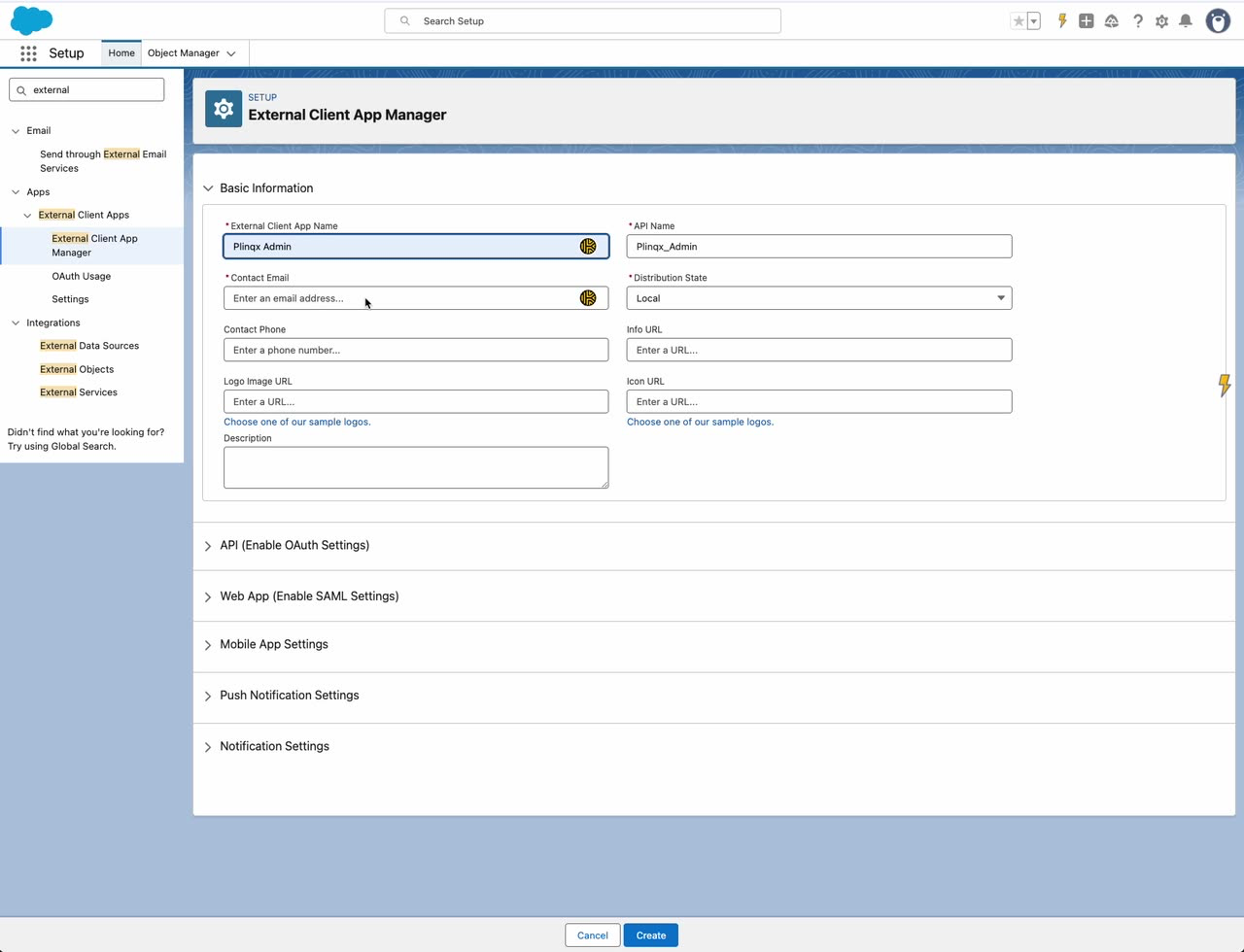
- Enable OAuth Settings (API section).
- Configure the required OAuth scopes and callback URL.
info
Callback URL: https://<your-salesforce-domain>/services/authcallback/Plinqx
Required OAuth scopes:
- Perform requests at any time (
refresh_token,offline_access) - Manage user data via APIs (
api) - Manage user data via Web browsers (
web)
Additional settings:
- Enable Device Flow
- Require secret for Web Server Flow
- Require secret for Refresh Token Flow
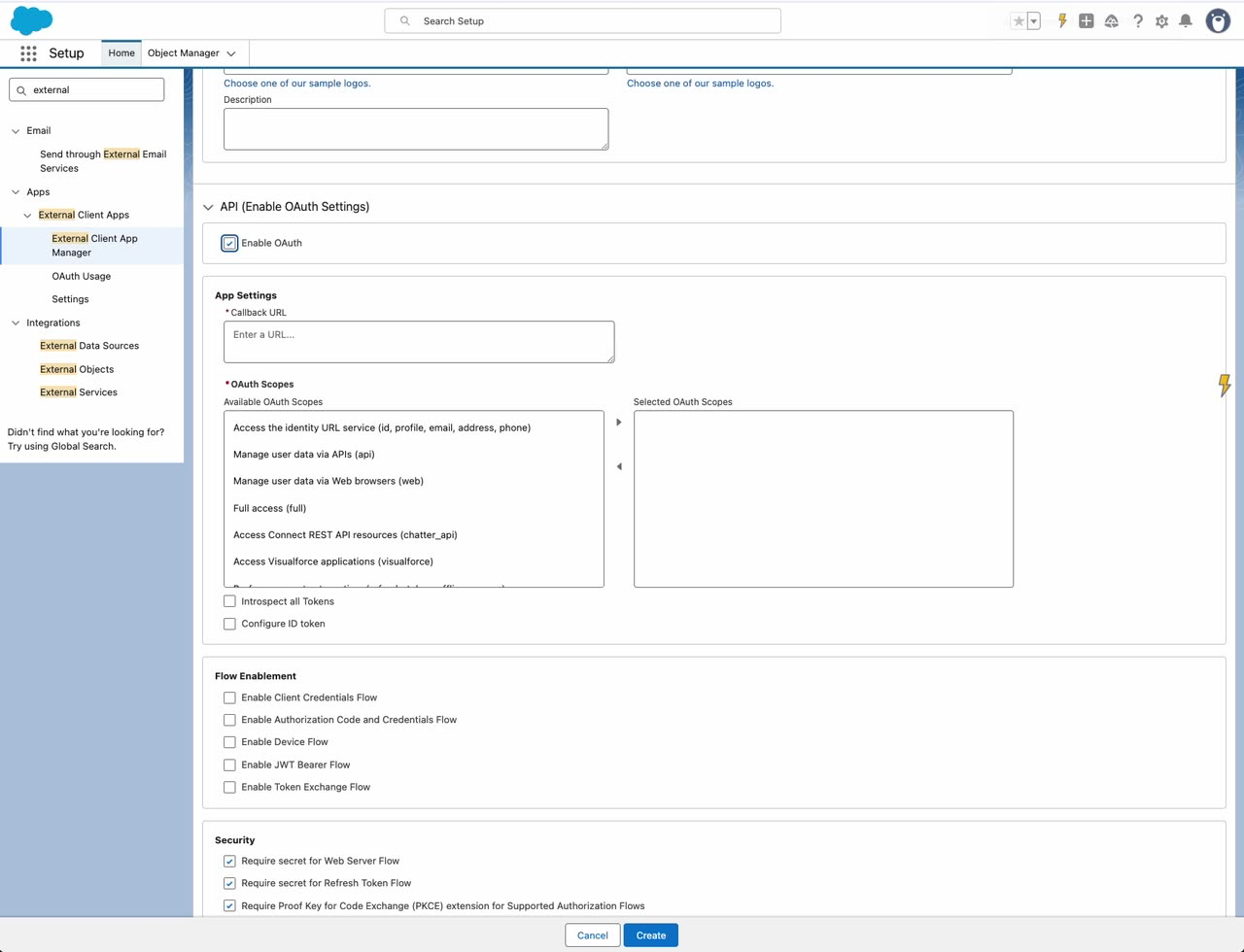
- Click Create (or Save) to create the External Client App.
Salesforce generates the Consumer Key and Consumer Secret. These are required for the Authentication Provider setup.
Retrieve the Consumer Key and Secret
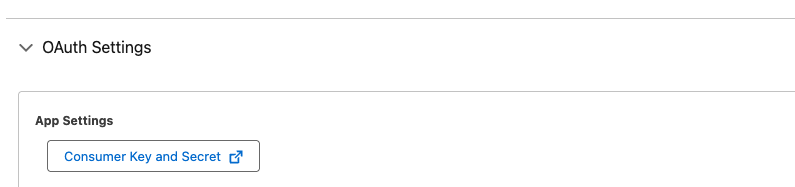
- Once created, in the OAuth Settings panel click Consumer Key and Secret.
- Enter the Verification Code emailed to you or generated by your 2FA app, then click Verify.
- Copy the Consumer Key and Consumer Secret. You will use these for the Plinqx Auth Provider in the next step.