GET Example
Available: Base
Overview
This tutorial shows how to create an Inbound API in Plinqx Publisher that exposes an HTTP GET endpoint and routes the request into a Salesforce Flow for processing.
Prerequisites
- Plinqx package is installed and accessible in your Salesforce org.
- You have permissions to access Plinqx Publisher and to create/deploy Flows.
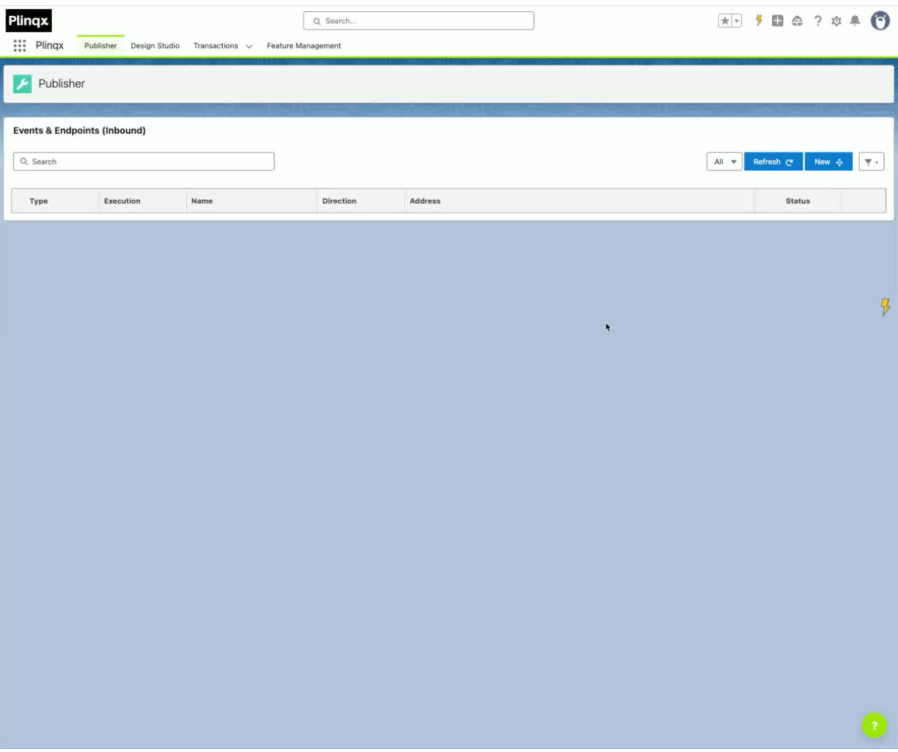
1. Navigate to Plinqx Publisher (Inbound)
- Open the Plinqx application.
- Go to the Plinqx Publisher tab.
- Filter to Inbound.
2. Create a new API
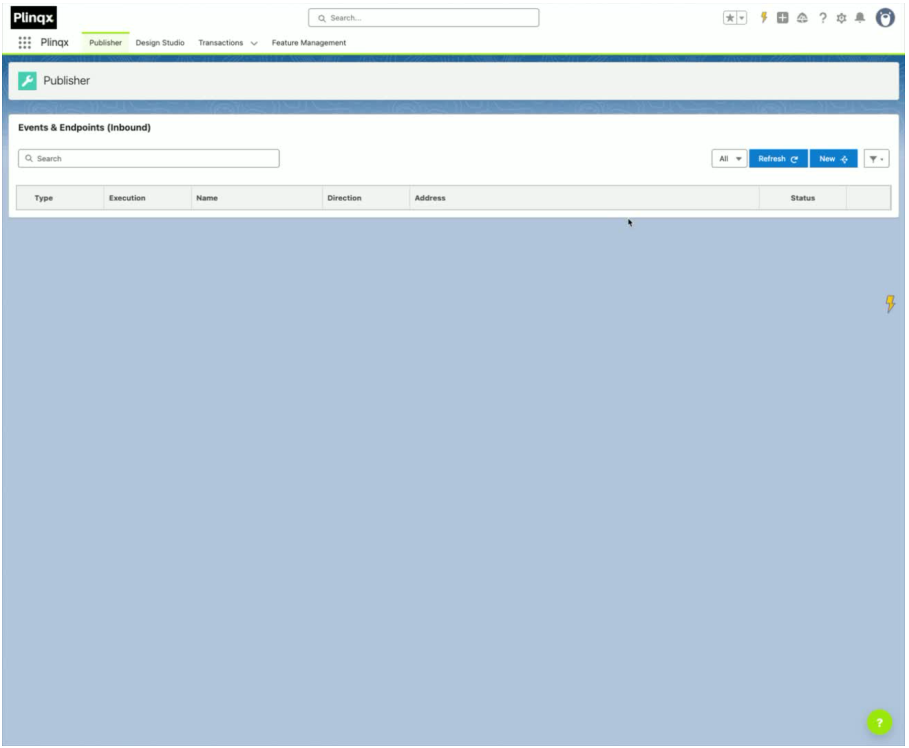
- Click New.
- In the wizard, enter:
- Name (for example,
GET Example) - Category (used for filtering)
- Description (what the API does)
- Name (for example,
3. Configure API settings
- Click Next.
- For Event Type, select API Service.

- Click Next.
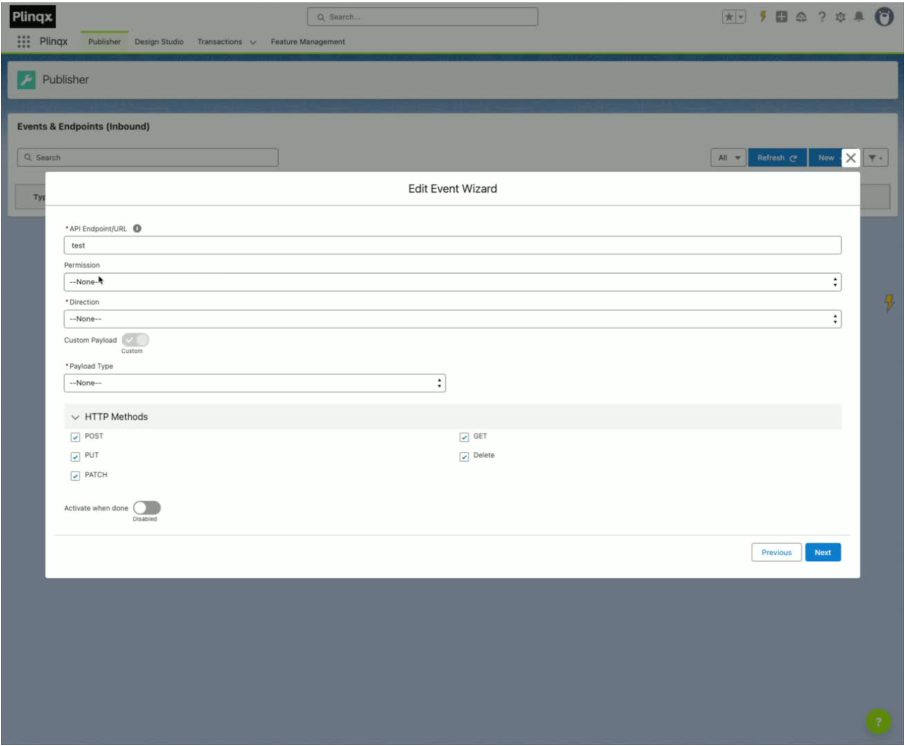
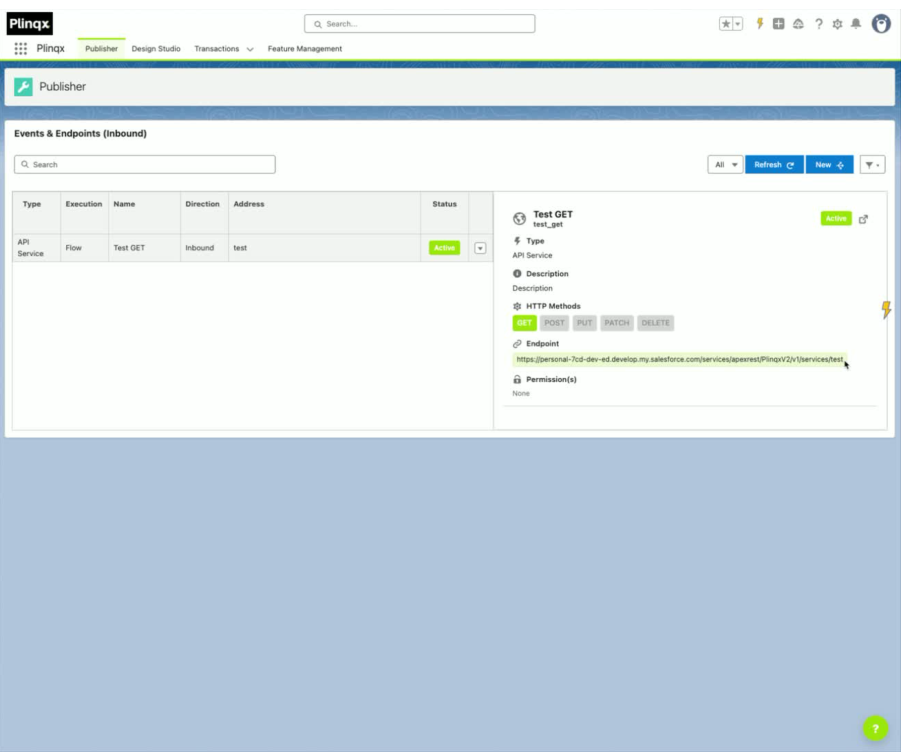
- Enter an API Endpoint/URL (This is where the API will be reachable by external systems).
- You can add wildcards.
- Wildcards use curly brackets with a numeric value, for example
{0},{1}, and so on. You can add multiple wildcards if needed.
4. Set direction and logic
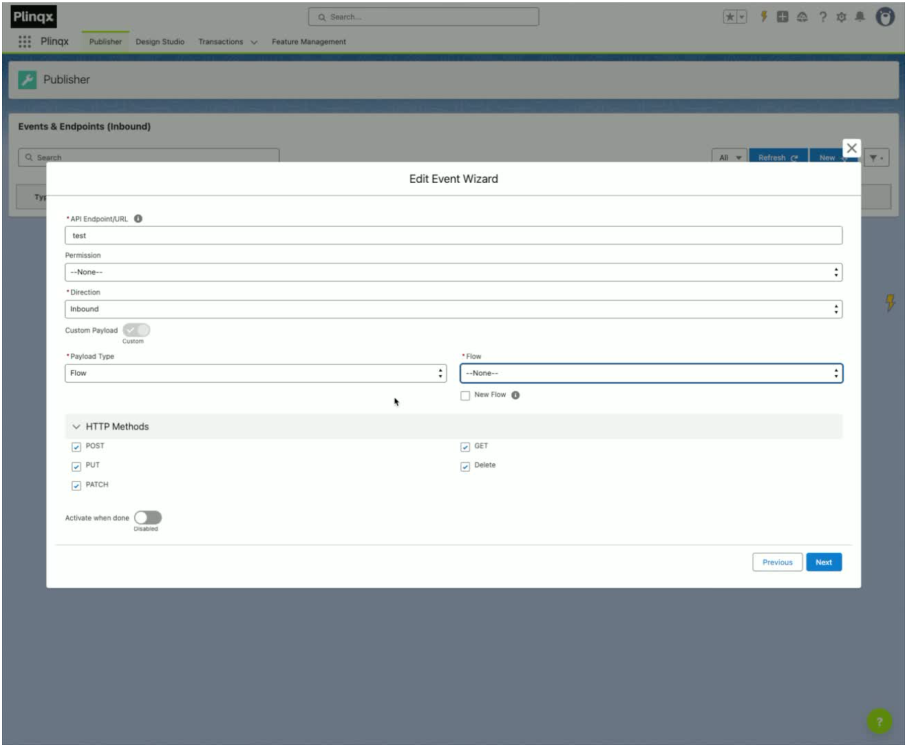
- Set Direction to Inbound.
- Choose Flow as the inbound logic.
- If you already have a Flow, select it from the dropdown. Otherwise, create a new Flow.
5. Create a new Flow (template)
- Check the New Flow checkbox.
- Provide a Flow Name.
- Click Next to generate and deploy the Flow template.
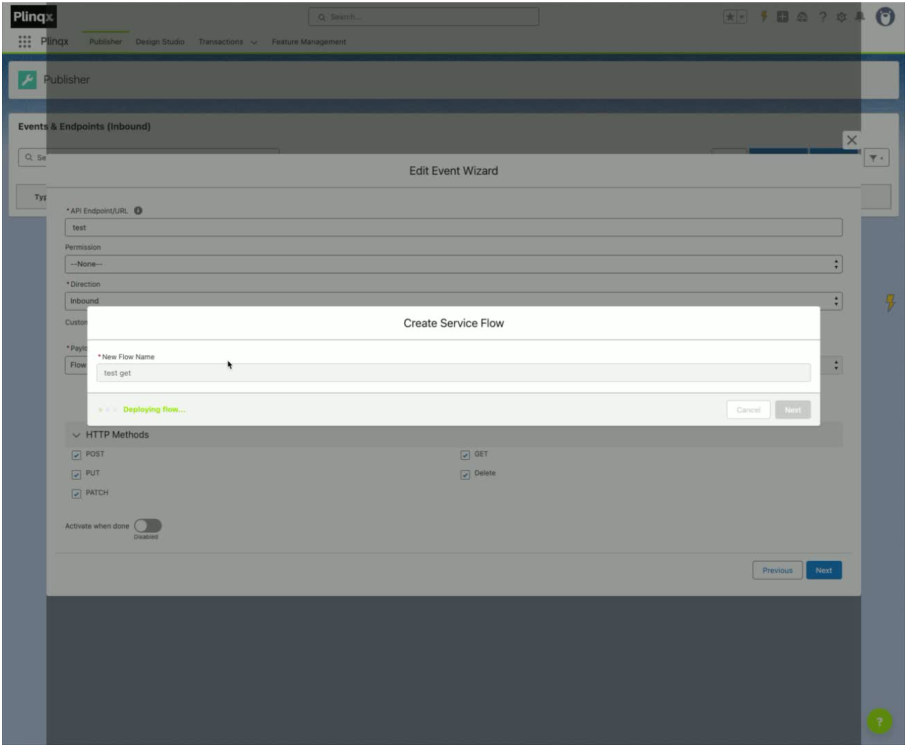
6. Configure HTTP method (GET)
- Select the GET HTTP method.
- Select Activate when done to activate your API once deployed (you can activate after as well).
- Click Next.
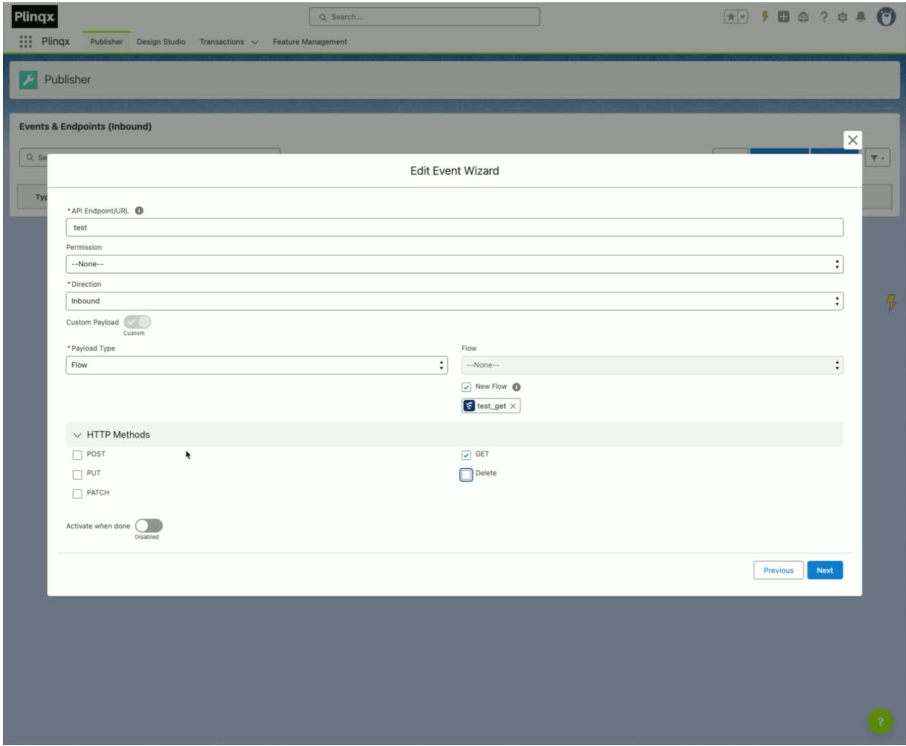
7. Review and submit
- Review your configuration.
- Click Submit.
- Wait for deployment to complete.
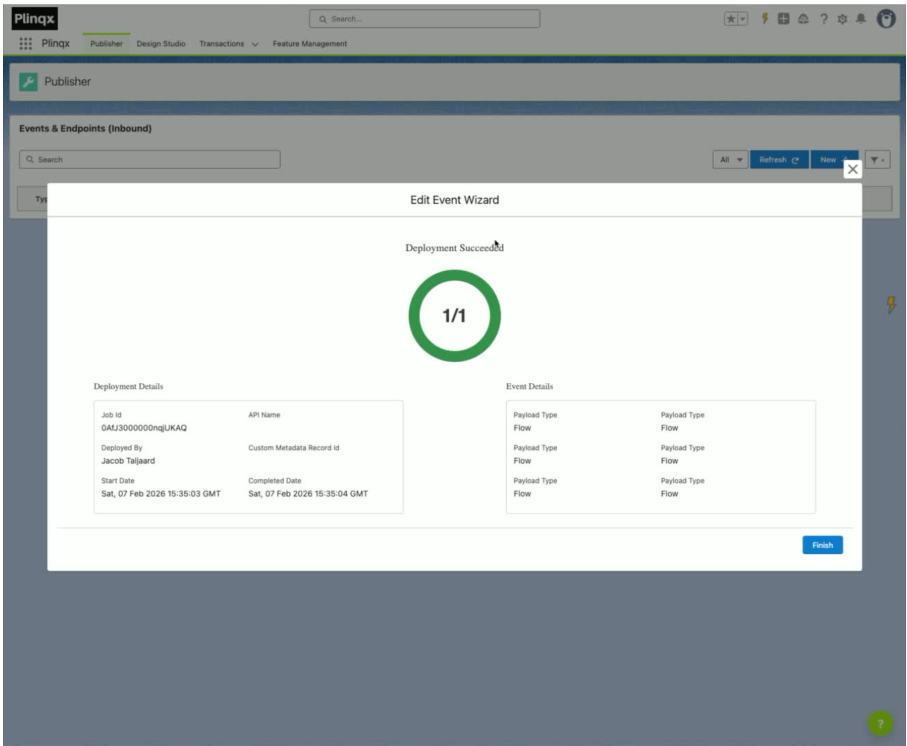
8. Access API details
- Click Finish.
- Your new API appears in the list.
- Click the API record to view its details.
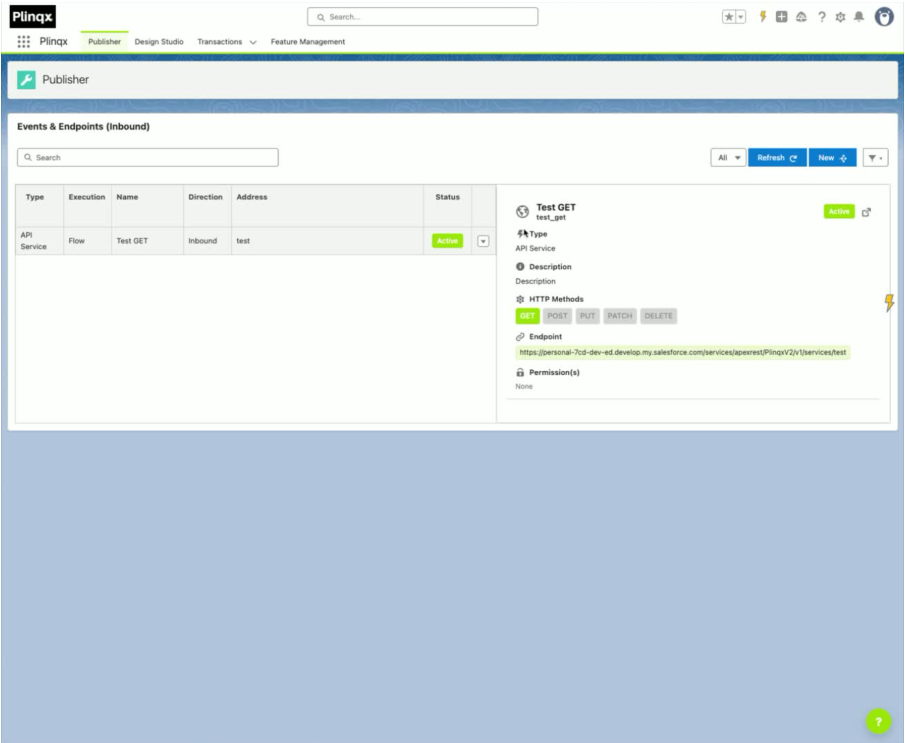
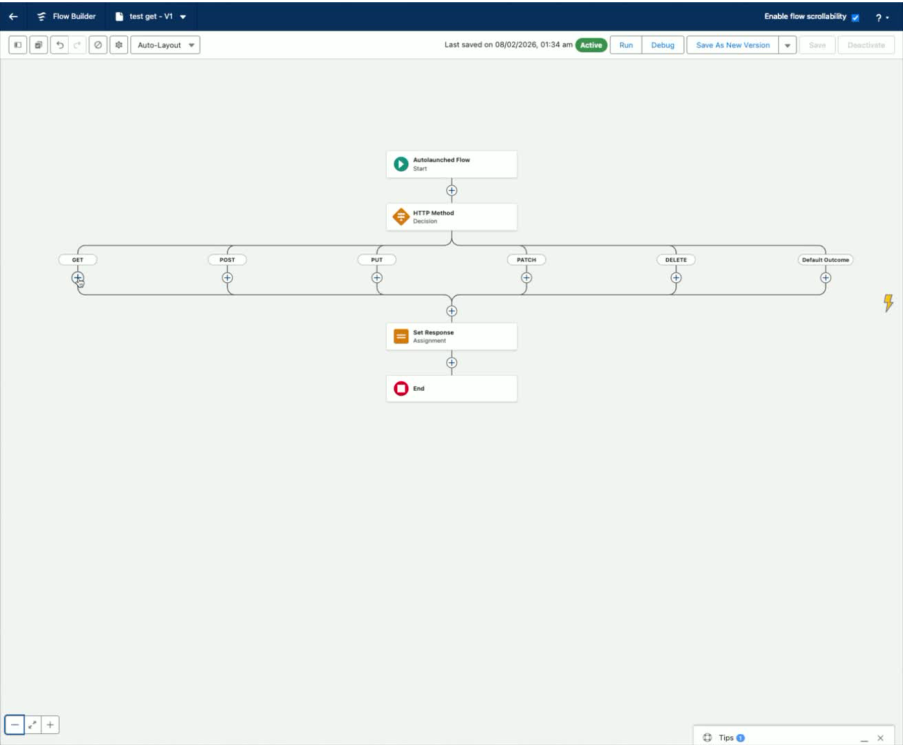
9. Configure the Flow behind the API (GET flow)
From the API details panel
- Click the Open in New Tab icon to access the Flow configuration.

- Work within the pre-configured HTTP methods (focus on GET for this example).
10. Retrieve Salesforce records (example: Accounts)
- Configure the Flow to retrieve Salesforce records (for example, Accounts).
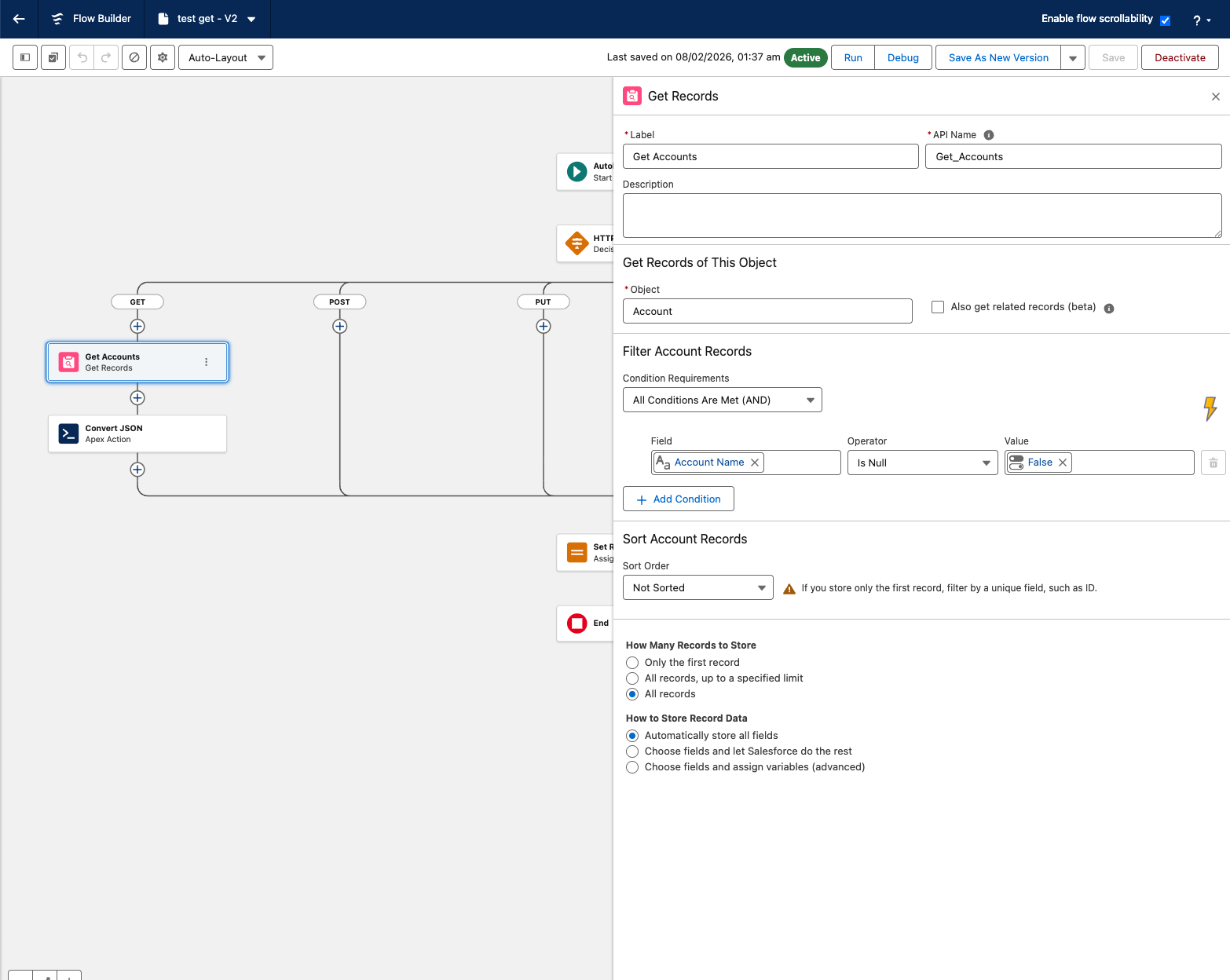
- Filter to retrieve Accounts where Name is not null.
11. Convert records to JSON
-
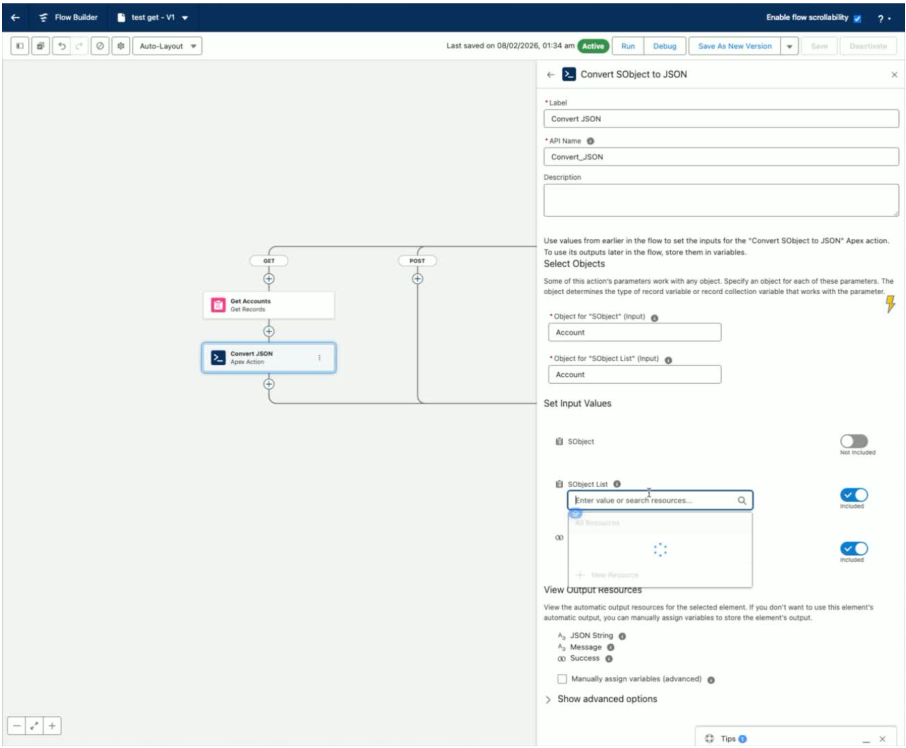
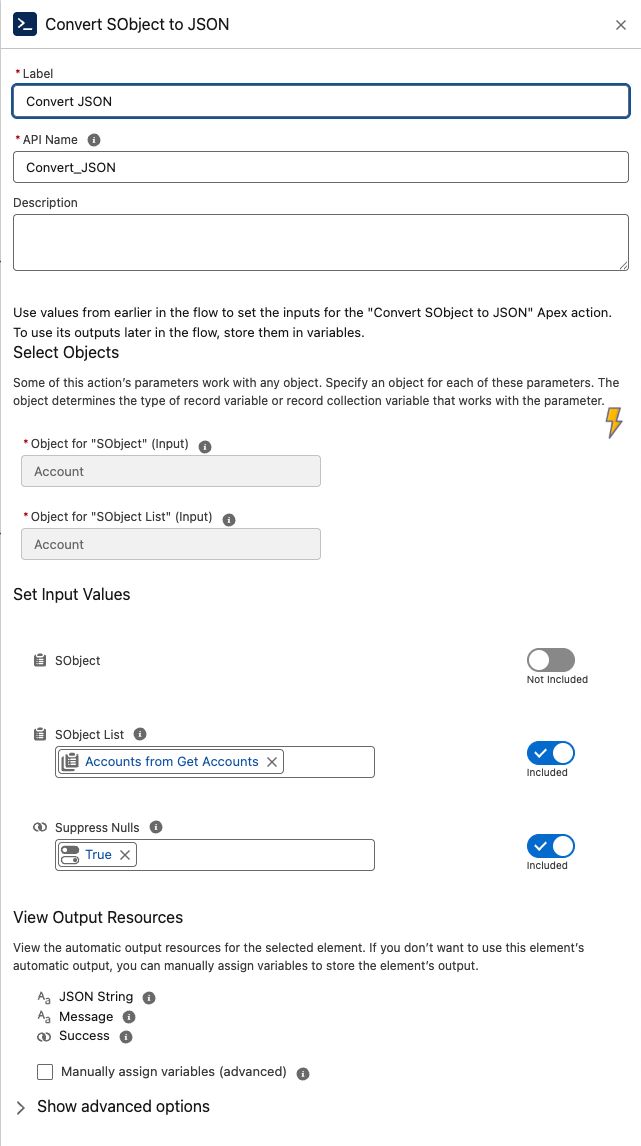
Use the Convert S Object to JSON component to format records for REST APIs.
-
Set Suppress Nulls to true to remove empty values from results.
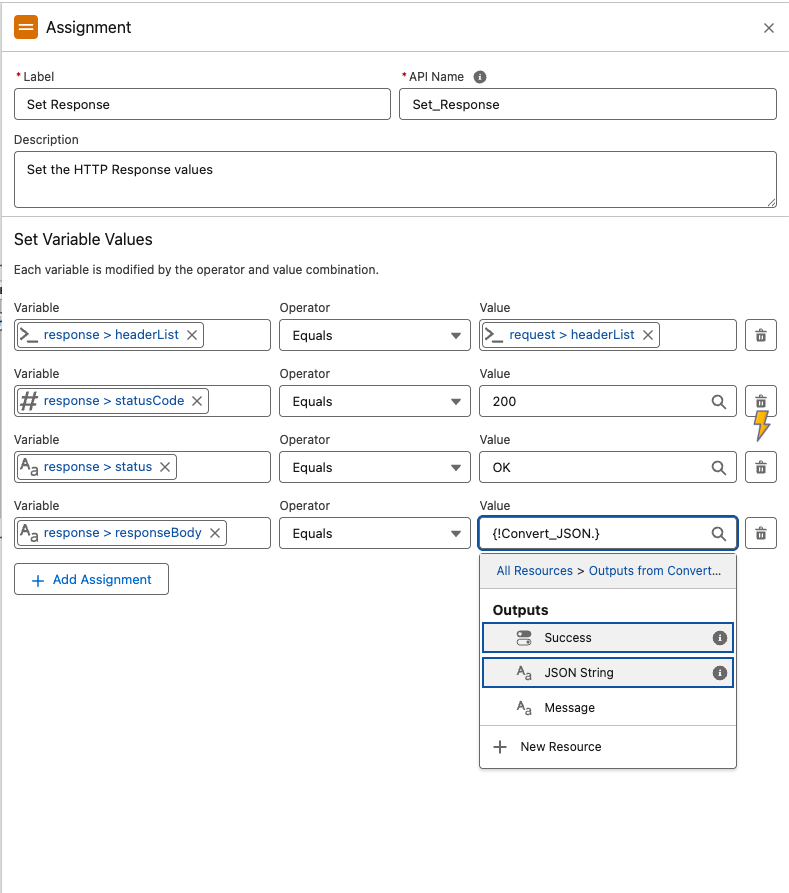
12. Set the response
- Assign the output of the Convert to JSON object to the HTTP response.
13. Test the API endpoint (GET)
- Copy the API endpoint.
-
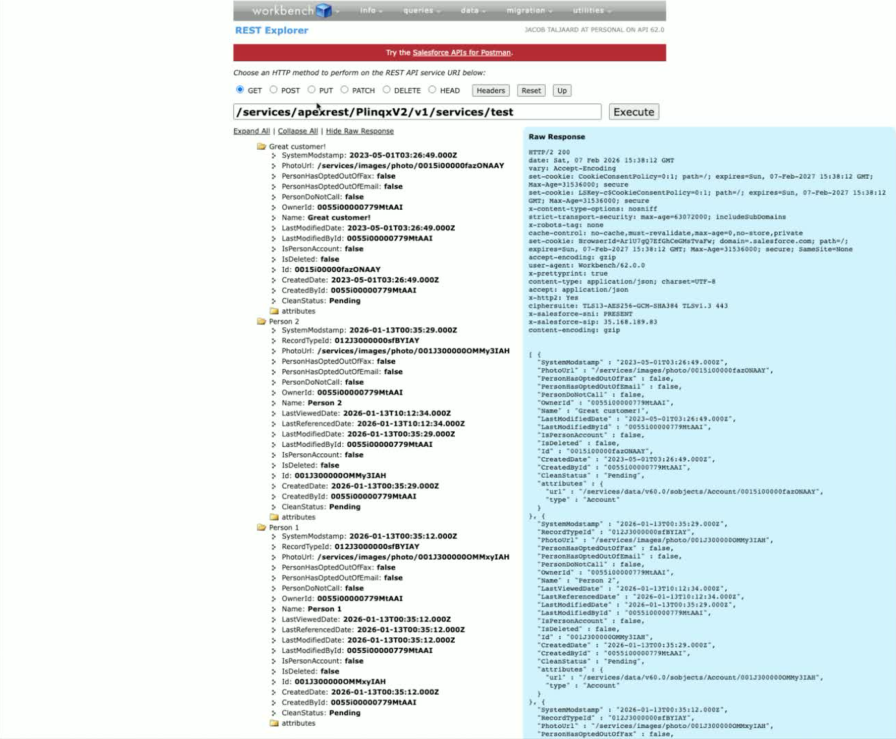
Use Salesforce Workbench to execute a GET request.
-
Inspect the returned responses.
14. Review Transactions
-
Open the Transactions tab to view called methods and blocked methods.
-
Inspect the last successful GET request and its headers.
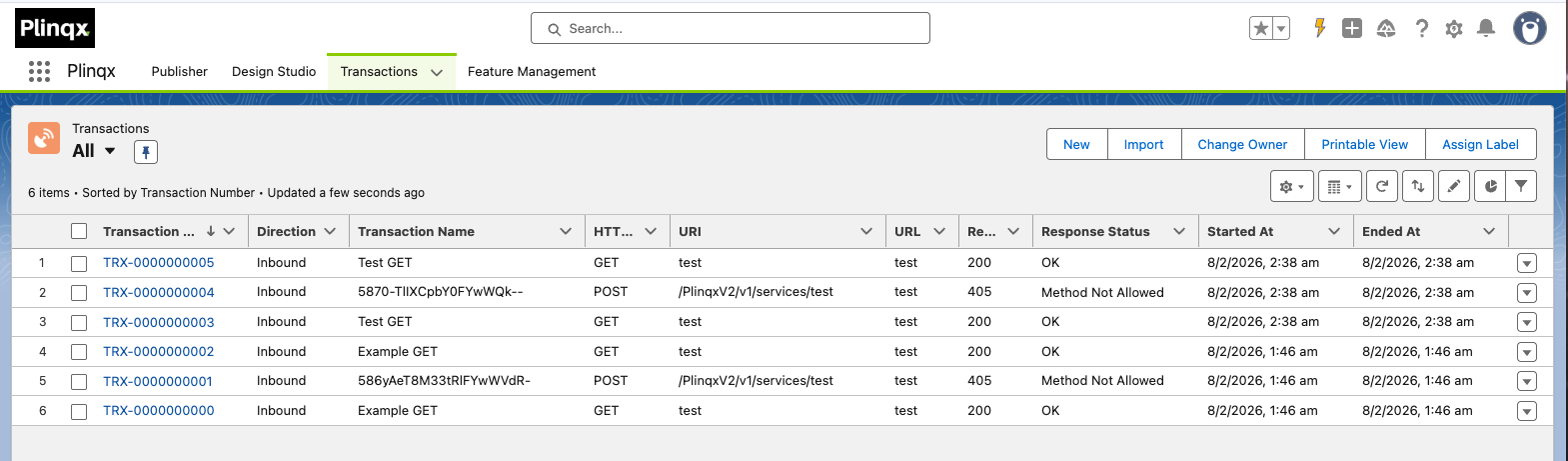
You can open and inspect the records as needed
Outcome
You have created an Inbound API in Plinqx Publisher, deployed a supporting GET Flow, tested the endpoint via Workbench, and verified execution through Transactions.