Transactions End-User Guide
Purpose
Plinqx Transactions provide an auditable record of API activity processed through Plinqx in Salesforce. A transaction record helps you:
- Confirm what was called (endpoint, HTTP method, direction).
- Inspect the request headers and request payload.
- Inspect the response returned to the caller.
- Review processing outcomes (status, response code) and (where enabled) platform execution limits.
- Reprocess a transaction to replay the same request (typically for testing and troubleshooting).
Note: All sensitive information, such as authorization headers, is explicitly omitted from the logs.
How to access Transactions
- In Salesforce, open the Plinqx app.
- Select the Transactions tab in the navigation bar.
- Choose the required List View (for example, All).
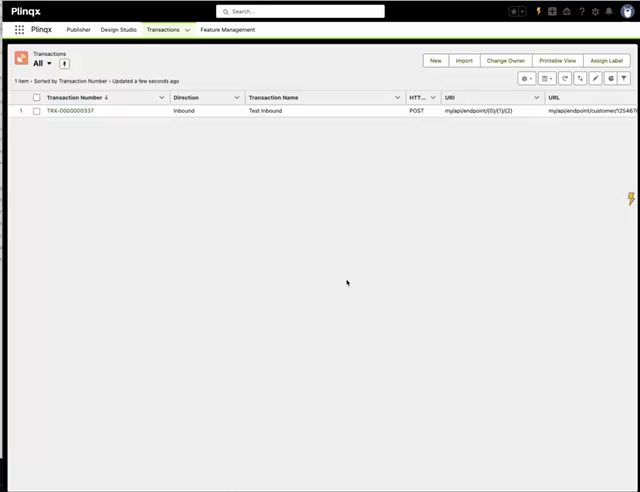
Find a transaction
From the Transactions list you can typically identify a record using:
- Transaction Number (unique identifier)
- Direction (Inbound/Outbound)
- Transaction Name
- HTTP Method
- URL / Endpoint
Tip (admins/configurators): When troubleshooting a specific integration run, start with the transaction number and Transaction Name (for inbound, this is the name you provided during configuration). Then review the payload/response to confirm you’re looking at the correct execution.
Open and review a transaction record
Click a Transaction Number in the list to open the transaction record.
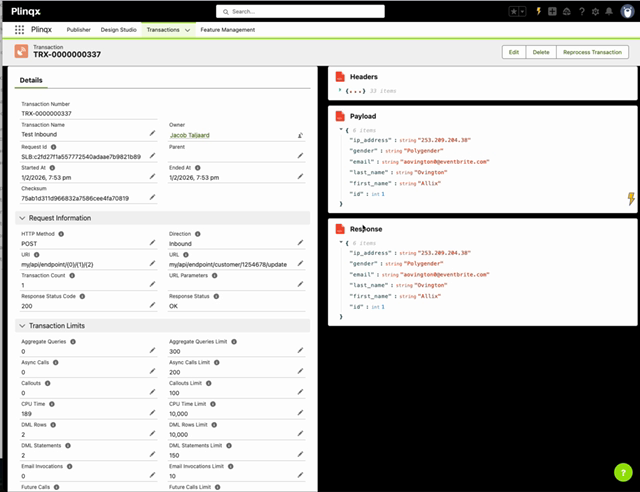
The transaction record is split into two main areas:
- Left panel: transaction metadata, request info, and execution/limit details
- Right panel: Headers, Payload, and Response (expandable sections)
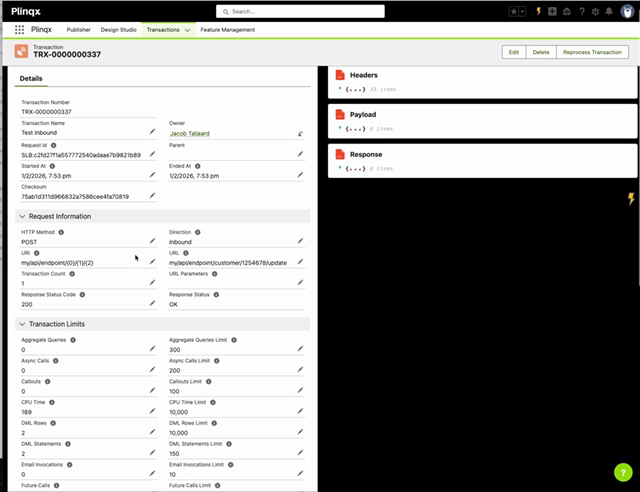
Transaction details (left panel)
Details
Common fields include:
- Transaction Number - the unique reference for this transaction.
- Transaction Name - friendly name (often derived from configuration or test naming).
- Owner - record owner.
- Request Id - correlation identifier for tracing a specific execution.
- Start / End - when the transaction processing started and completed.
- Checksum - used internally for request integrity/tracking.
Request Information
Use this section to understand what was called:
- HTTP Method - e.g., GET/POST/PUT.
- Direction - typically Inbound for requests into Salesforce via Plinqx, or Outbound for calls leaving Salesforce (depending on your implementation).
- URL - the endpoint that was invoked.
- URL Parameters - captured parameters (if any).
- Response Status Code - e.g., 200.
- Response Status - human-readable status (e.g., OK).
Transaction limits (admins)
Where enabled, this area shows execution usage and limits such as:
- Queries, DML statements/rows
- CPU time
- Callouts
- Heap size
These are useful when diagnosing failures related to Salesforce limits.
Headers (right panel)
Expand Headers to view captured request header values.
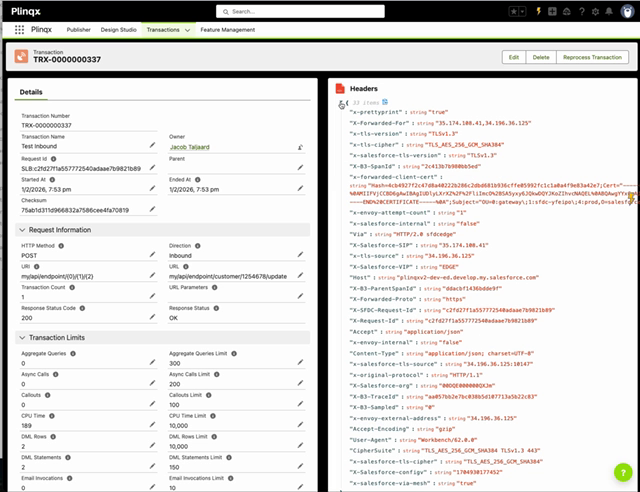
What you'll use this for
- Confirm routing details and non-sensitive headers (where relevant).
- Validate content type / encoding.
- Provide supporting detail when escalating issues.
Payload (right panel)
Expand Payload to see the request body captured for the transaction (commonly JSON for REST requests).
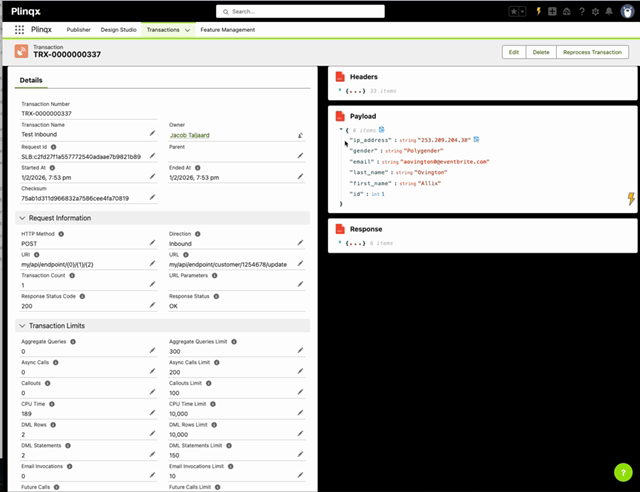
What you'll use this for
- Verify the input data that Salesforce received (or sent).
- Confirm mapping/configuration is producing the correct structure.
- Compare with downstream system expectations.
Response (right panel)
Expand Response to view the response body returned.
What you'll use this for
- Confirm what the caller received.
- Validate success/error structures.
- Compare expected vs actual output during testing.
Reprocess a transaction (replay)
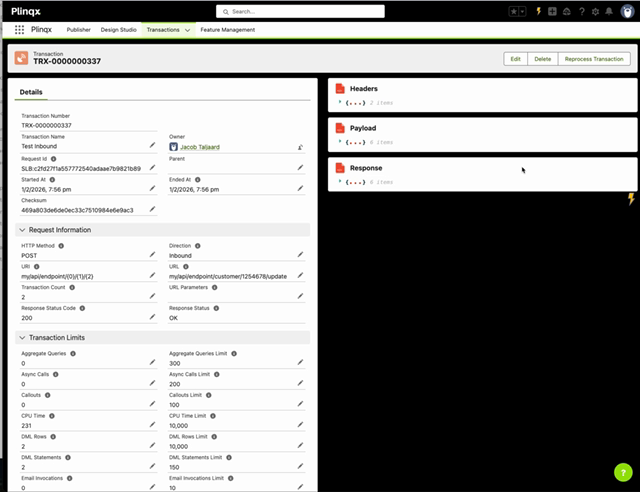
If you need to replay the same request (for example after configuration changes):
- Open the transaction record.
- Click Reprocess Transaction.
- Wait for the record to refresh/load.
- Review updated timestamps/status and re-check Payload/Response.
Notes
- Reprocessing is typically used for testing and troubleshooting.
- Depending on your configuration, reprocessing may increment a transaction count and/or create additional logs.
Related lists (admins/configurators)
Near the bottom of the record you may see related lists such as:
- Files - attachments related to the transaction (if used)
- Logs - additional processing logs (if enabled)
- Transactions - child/related transactions (implementation-specific)
Use these when deeper diagnostics are required.
Troubleshooting tips
- 200 OK but unexpected behaviour: Compare Payload and Response to what the downstream system expects.
- No response body / empty payload: Confirm the caller actually sent a body, and check headers for content-type.
- Intermittent failures: Use Start/End time + Request Id to correlate across logs.
- Limit-related errors (admins): Review Transaction limits for CPU, queries, or heap pressure, and adjust configuration/implementation accordingly.
Glossary
- Inbound: Requests coming into Salesforce/Plinqx from an external system.
- Outbound: Requests sent from Salesforce/Plinqx to an external system.
- Payload: The request body (often JSON).
- Headers: HTTP metadata sent with the request/response (auth, content type, etc.).