Plinqx Publisher Webhooks and API Keys
Available: As an Add-On
Overview
Plinqx Publisher supports two closely related capabilities:
- API Keys: Secure, revocable credentials that external systems can use to call your published Plinqx endpoints.
- Webhooks: Outbound notifications from Plinqx to an external URL (for example, when an event occurs or a process completes).
This guide focuses on API Key management. It also describes how API Keys are typically used with Webhooks.
Prerequisites
- You have access to the Plinqx app in Salesforce.
- You can open the Publisher tab.
- You have permission to create and manage API Keys (and Webhooks, if applicable in your org).
Navigate to API Keys
- Open App Launcher -> Plinqx.
- Go to Publisher.
- In the Events and Endpoints area, switch the view to Webhooks and API Keys.
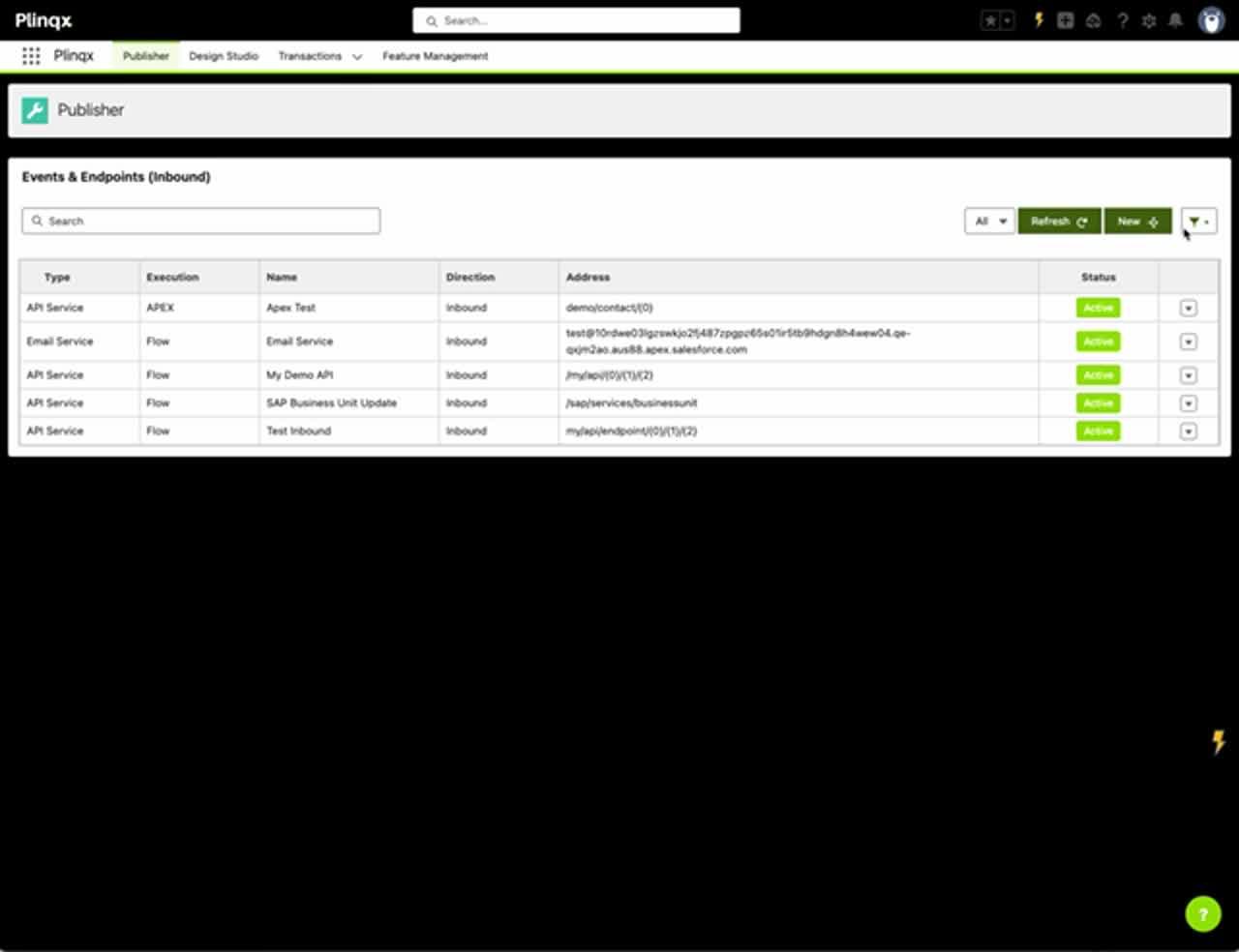
API Keys
What an API Key is
An API Key is a token that an external caller includes with requests so Plinqx can authenticate and authorize access to endpoints.
Include the key in the request headers, for example:
x-api-key: <your key>
Typical uses:
- A third-party integration calling a Plinqx inbound endpoint.
- Internal middleware (MuleSoft, Azure Functions, etc.) calling a published service.
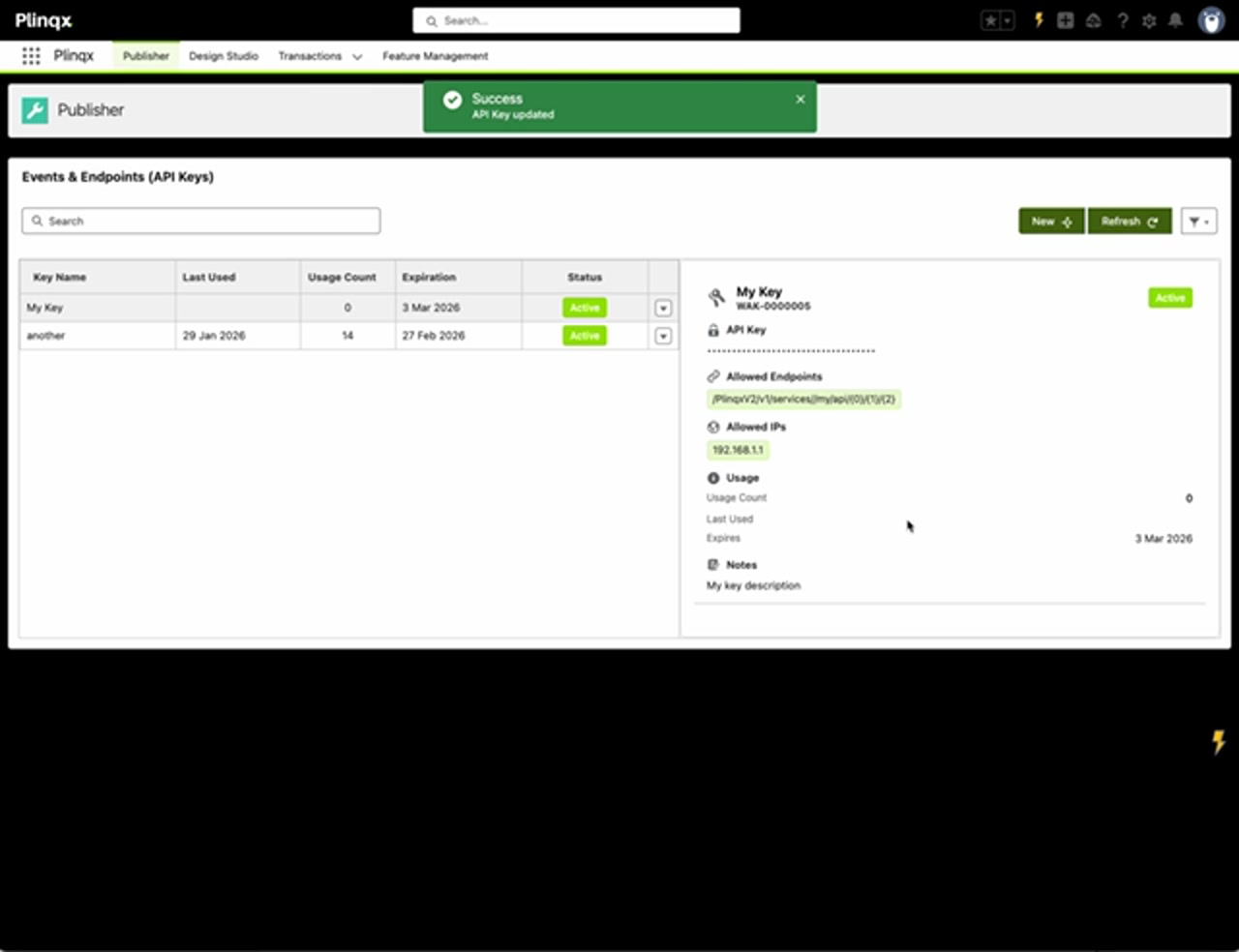
View API Key details
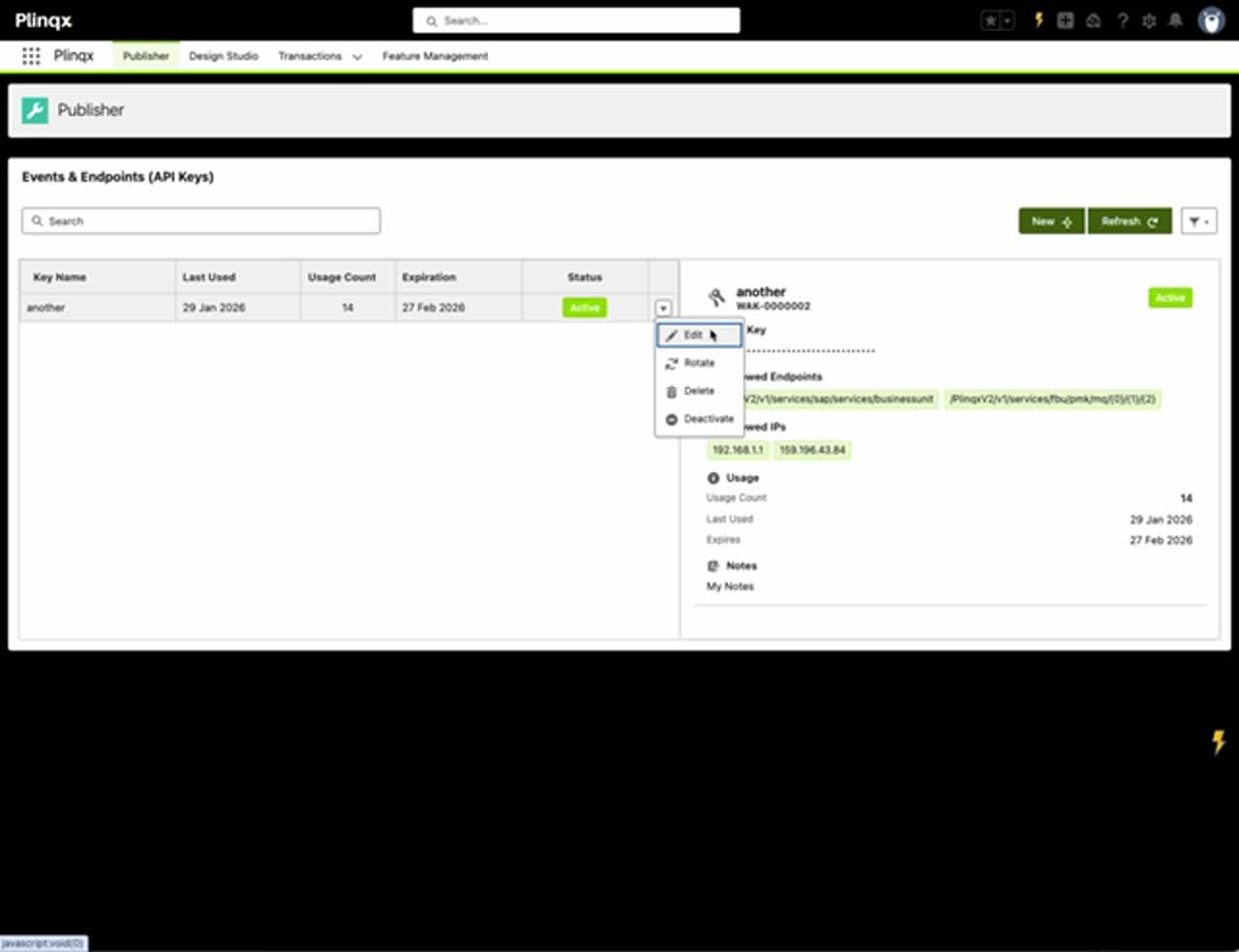
- In Events and Endpoints (API Keys), select a key in the list.
- Review details in the right-side panel:
- Status (Active/Inactive)
- Allowed Endpoints (if restricted)
- Allowed IPs (if restricted)
- Usage (usage count, last used)
- Expiry
Create a new API Key
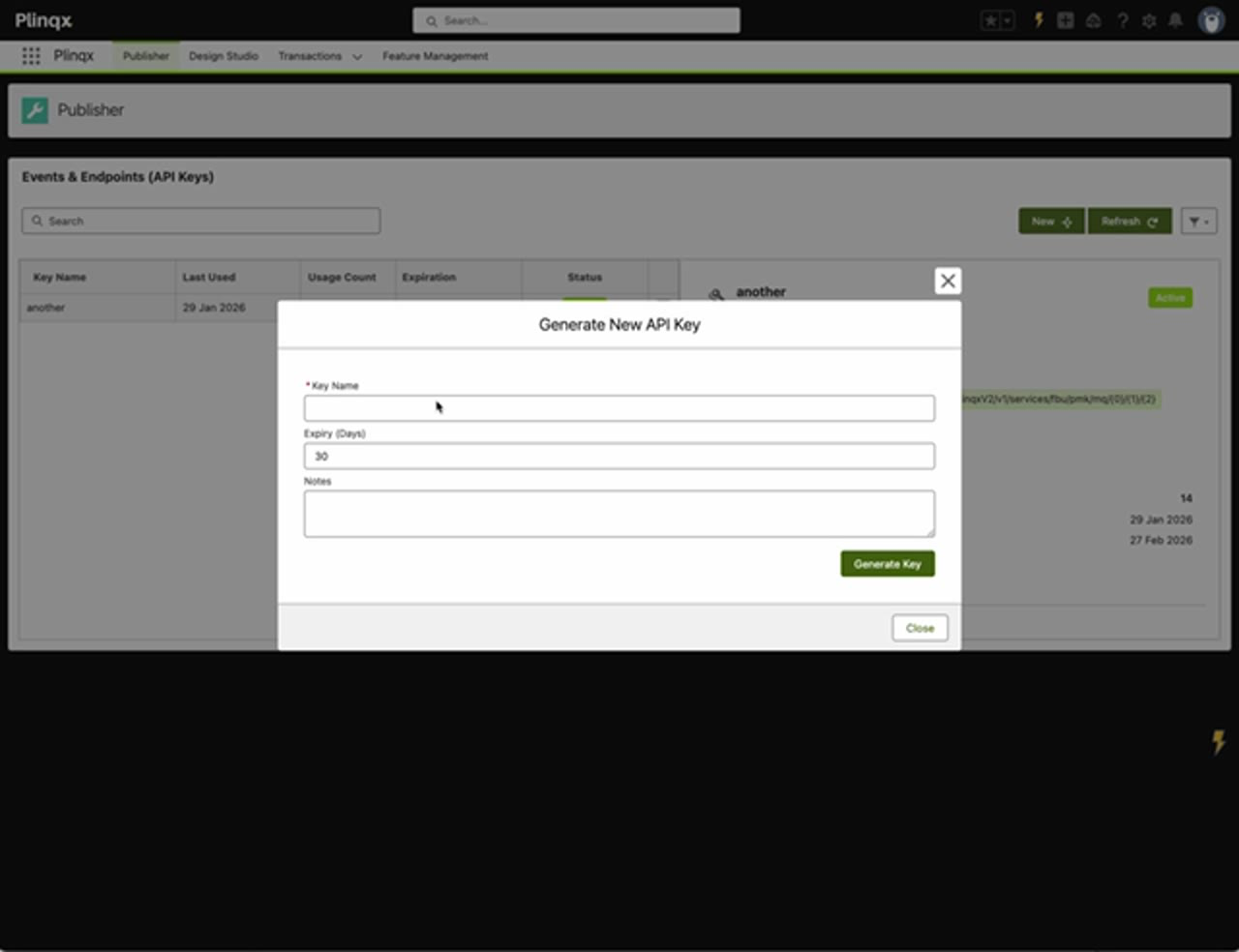
- Click New.
- Complete the fields:
- Key Name: A clear name for the integration or consumer.
- Expiry (Days): How long the key will remain valid.
- Notes: Optional context (owner, system name, purpose).
- Click Generate Key.
Copy the key (important)
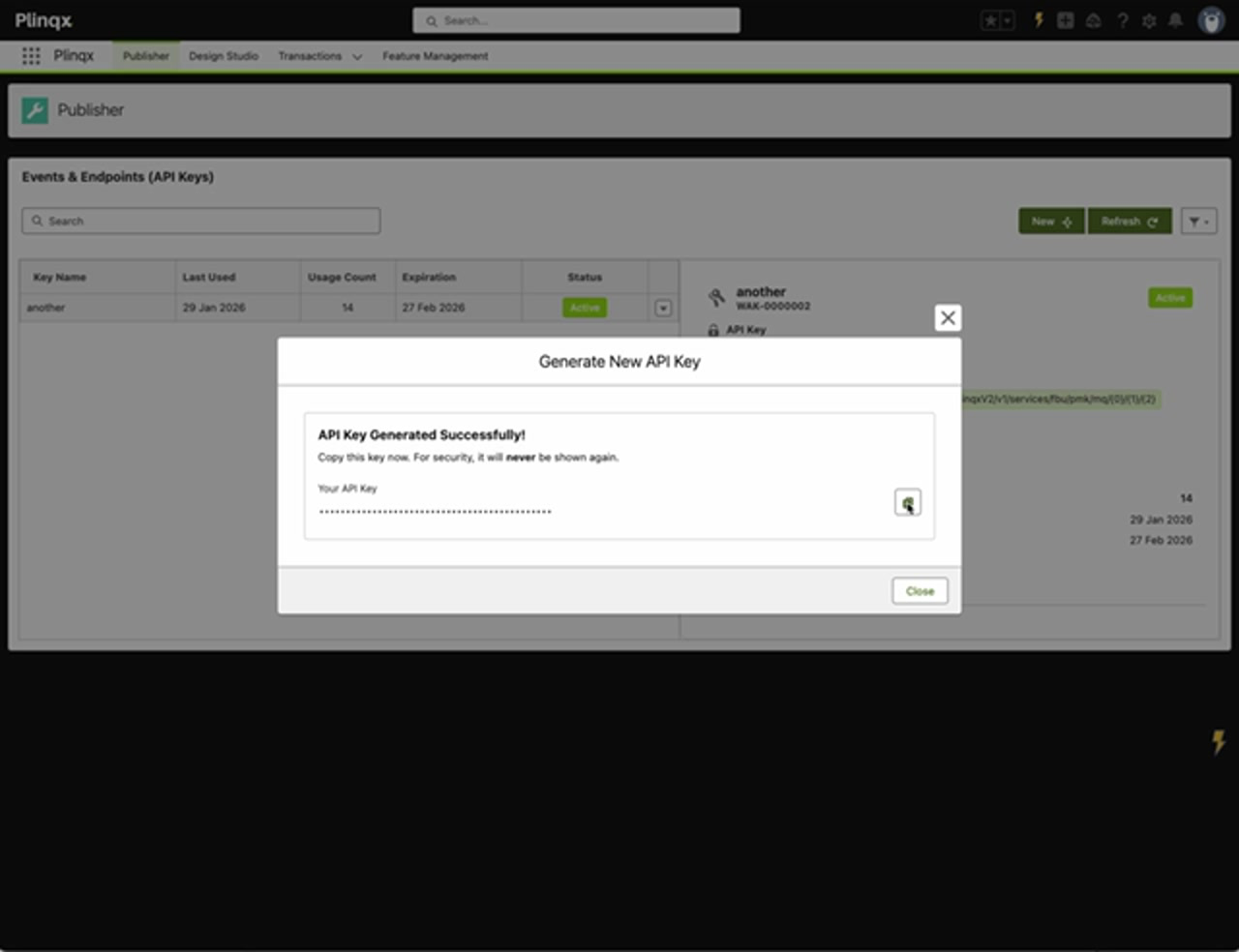
After generation, you will be shown the API Key once.
- Click the copy icon.
- Store the key securely (password manager / secret store).
For security, the key will not be shown again.
Edit an API Key
Use editing to restrict access and reduce risk.
- Select the key.
- Open the actions menu and choose Edit.
Edit fields
- Key Name
- Expiration Date
- Allowed IPs (comma-separated)
- Supports individual IPs and (where applicable) CIDR ranges.
- Allowed Endpoints
- Move endpoints from Available to Selected to restrict what the key can call.
- Notes
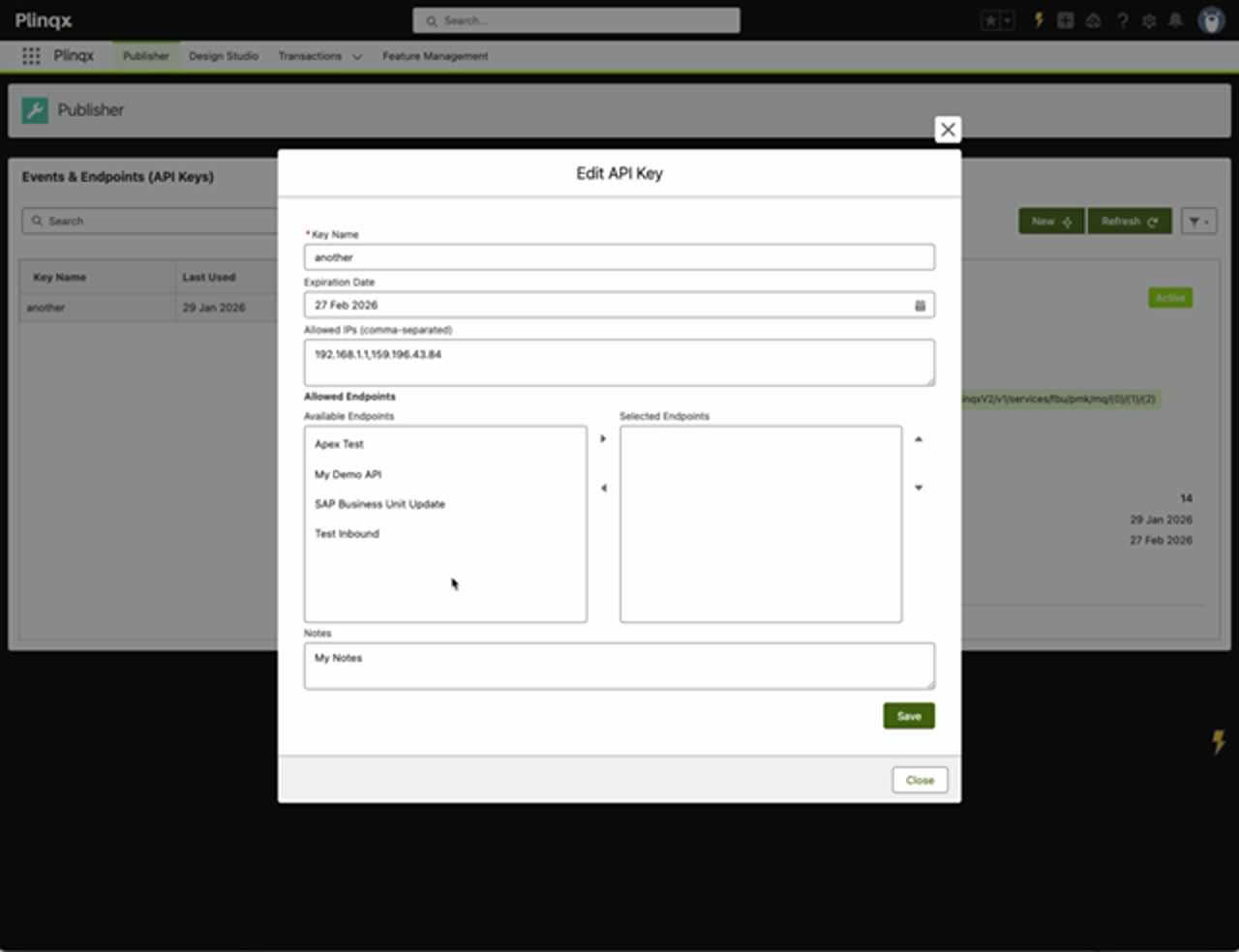
Example: Restrict to one endpoint and one IP
After saving, you can confirm your restrictions in the detail panel.
Rotate, deactivate, or delete an API Key
From the key's actions menu you can manage the key lifecycle.
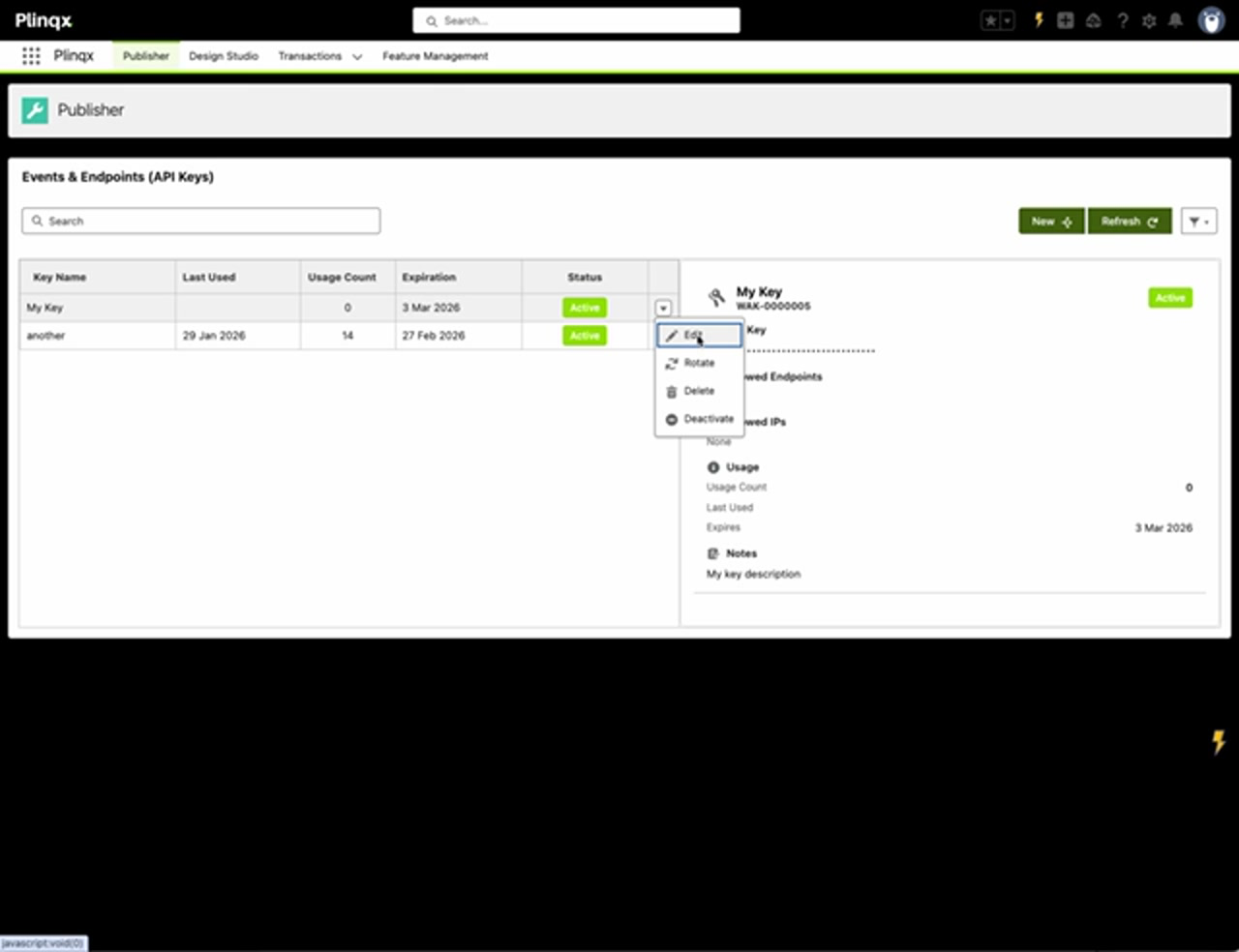
Rotate
Use when:
- You suspect the key may be exposed.
- You follow scheduled security rotation.
Recommended process:
- Rotate the key.
- Update the external system to use the new key.
- Validate traffic.
- Deactivate (or delete) the old key once confirmed.
If you rotate a key, make sure you update all calling systems that use it.
Deactivate
Use when:
- Temporarily suspending access (maintenance window, investigation).
Delete
Use when:
- A key is no longer required and you want it removed.
Webhooks
Available: As an Add-On Requires: Salesforce Sites / Experience Cloud
What a webhook is
A webhook is an outbound HTTP call from Plinqx to an external URL.
Typical uses:
- Notify another system that an event occurred.
- Push process results to downstream systems.
How API Keys relate to Webhooks
Depending on how your webhook endpoint is secured, you might:
- Use an API Key as a shared secret (sent in a header).
- Use Named Credentials or other authentication mechanisms.
Recommended approach:
- Treat the webhook consumer URL as sensitive.
- Restrict by IP allowlist on the receiver side where possible.
- Rotate any shared secrets regularly.
Configure a webhook
Webhooks use the configured Inbound APIs as endpoints.
The Webhook Manager within Plinqx securely manages the redirect from a Salesforce Site to the configured Plinqx API.
- Open Plinqx -> Publisher.
- In the Events and Endpoints area, switch the view to Webhooks and API Keys.
- Select the Webhooks and API Keys record you want to apply to the API.
- Click Edit.
- From Available Endpoints, select and add the endpoints to Selected Endpoints.
- Click Save.
Troubleshooting
"It worked yesterday but fails today"
- Check Expiry on the API Key.
- Check whether the key has been deactivated.
"401/403 errors from Plinqx endpoints"
- Confirm the correct API Key is being sent.
- If Allowed Endpoints are configured, ensure the target endpoint is included.
- If Allowed IPs are configured, ensure the caller IP matches.
"Webhook calls not arriving"
- Verify the target URL is reachable from your network.
- Confirm authentication (headers, secrets) on the receiver.
- Check any monitoring/logging available in your org.